
What's inside
As an Amazon Associate I earn from qualifying purchases. This post may contain affiliate links at no extra cost to you.
Learning how to choose backup drive for gaming pc builds starts with a number that shocks every first-time calculator: a modern game library is not a folder, it is a estate. A dozen current titles at fifty to a hundred and fifty gigabytes each, a modded install or two, the captures and clips of a year’s best moments, the operating system and its saves, settings, and screenshots, and the library crosses a terabyte while the owner still thinks of it as a few games. When the drive holding that estate fails, and drives fail on a schedule statistics keep and owners ignore, the loss is not the downloads, which the store remembers, but everything the store does not: the saves, the mod configurations, the clips, the hundred hours inside the games rather than the games themselves. This guide teaches the choice properly: the capacity arithmetic done against your real library, the backup doctrine that decides how many drives and where they live, the drive types graded for the job in one table of six real, currently sold models, and the setup steps that turn a purchased drive into an actual backup, since a drive in a drawer, unconfigured, is a hope with a USB cable, and hope is not a strategy any more in storage than it is in games.
State the doctrine before the hardware, because it outranks every product below: 3-2-1, three copies of what matters, on two different kinds of media or devices, with one copy off the premises, in the cloud or at another address. For the gaming PC the doctrine translates concretely: the working copy on the machine’s SSD; the backup copy on the drive this guide helps you choose, connected on a schedule or living in the backup’s own enclosure; and the third copy as cloud backup of the irreplaceable subset, saves, clips, documents, whose size is mercifully small, or a second drive rotated to a friend’s or a family’s house. The reason for the third copy is written in the incidents a single room can host, theft, fire, flood, and the ransomware that encrypts every drive it can reach, which is also why the backup drive’s connection habit matters: a backup that is always attached can be encrypted with the machine, while a backup attached for its scheduled hour and then unplugged is an air gap with a calendar. Choose the drive, therefore, as one citizen of a system, and let the steps below build the system around it.
Our Top Picks
How to Choose Backup Drive for Gaming PC: Capacity, Speed, and Drive Types
The Capacity Arithmetic: Size for the Library You Will Own
Do the sum with your real numbers, in this order. Total the PC’s used space today, games, system, media, and all, from the drive’s own properties rather than from memory. Multiply by the growth your habits predict, the library’s direction being the one statistic every gamer knows about themselves, with a doubling across the drive’s service life being the planning figure for an active library and a half-again for a settled one. Then apply the backup’s own rule: a drive used for versioned backup, keeping several generations of the machine’s state so a bad week can be rolled back and a deleted folder recovered from last month, should hold at least twice the data it protects, three times being comfortable. The three multiplications commonly land the gaming PC’s owner in the four-to-eight-terabyte class for a desktop backup drive, a figure that startles until it is priced, since the big desktop hard drives in this table deliver those terabytes at the category’s lowest cost per unit, while the portable drives’ convenience tops out at smaller capacities for more money per terabyte. Buy the size the arithmetic names, because a backup drive that fills in its first year teaches its owner to exclude folders, and an excluded folder is, by the iron law of storage, the one whose loss gets mourned.
Drive Types for Backup Duty: HDD, Portable, SSD, and NAS
Match the type to the backup’s rhythm. The desktop external hard drive, a 3.5-inch mechanism in a powered enclosure, is the capacity champion and this guide’s default for the gaming PC’s main backup: terabytes at the lowest price, speed entirely sufficient for scheduled image and file backups, and a desk-bound life that suits a drive whose job is to sit beside the machine and be plugged in on schedule. The portable 2.5-inch drive trades capacity and price for the bag: bus-powered, pocketable, the natural choice for the rotated off-site copy and for the laptop gamer’s whole system. The portable SSD buys speed and shock resistance at a steep per-terabyte premium, justified where backups are huge and frequent, where the drive travels hard, or where it doubles as a working games drive, and wasted where it will sit on a desk copying overnight at a hard drive’s perfectly adequate pace. The NAS, a networked enclosure with its own redundancy, is the household’s graduation, serving several machines and hosting the off-site logic internally, at a price and a complexity this guide treats as the next step rather than this purchase, while naming it so the reader with three PCs knows their road. Grade the table’s rows inside those roles, because a backup drive is not good or bad in the abstract, only fitted or unfitted to its rhythm.
Speed, Interfaces, and the Software That Makes It a Backup
Backup speed matters exactly twice: the first full backup, which at hard-drive pace over USB is an overnight ceremony for a large library, and the restore, the day the speed is the difference between an evening and a weekend, and for both, USB 3 in its generations is the working standard, with the interface’s name mattering less than the drive mechanism’s own pace, hard drives delivering their hundred-and-fifty-megabyte class regardless of the port’s theoretical ceiling. What turns the drive into a backup is the software and the schedule, and the gaming PC’s owner has honest choices at every price: the operating system’s built-in image and file-history tools, adequate and free; the drive makers’ bundled utilities, convenient and variable; and the dedicated backup applications, free and paid, whose versioning, verification, and scheduling are the professional class’s. Whichever is chosen, three settings decide whether the backup exists in fact: it runs on a schedule without being remembered, it verifies or reports its failures visibly, since a backup that failed silently in March is a June discovery no one should make, and it keeps versions, so the backup is a history and not a mirror of today’s mistake. The steps below install those settings as part of the purchase, because they are.
How to Choose Backup Drive for Gaming PC: Quick Comparison
| Backup Drive Model | Key Specs | Best For | Typical Price Range | Rating |
|---|---|---|---|---|
| WD My Book (desktop, 4-8TB class) | Desktop HDD in class, USB 3, powered enclosure, bundled backup software positioning in line | Best backup drive for gaming PC overall | $110 – $200 by capacity | 4.6 / 5 |
| Seagate Expansion Desktop (4-8TB class) | Desktop HDD in class, USB 3, simple drag-and-drop positioning | Best desktop value per terabyte | $100 – $180 by capacity | 4.5 / 5 |
| WD My Passport (portable, 2-5TB class) | Portable HDD in class, bus-powered, slim, bundled software in line | Best portable for rotation/off-site | $80 – $160 by capacity | 4.5 / 5 |
| Samsung T7 Shield (portable SSD, 1-4TB class) | Portable SSD in class, USB 3.2 Gen 2, ruggedized positioning | Best fast portable SSD | $100 – $280 by capacity | 4.6 / 5 |
| Toshiba Canvio Basics / Advance class | Portable HDD in class, simple, value pricing | Best budget portable | $65 – $130 by capacity | 4.3 / 5 |
| Seagate Backup Plus / One Touch Hub class | Desktop HDD with hub features in class positioning, front USB ports in line | Best desk hub drive | $130 – $220 by capacity | 4.4 / 5 |
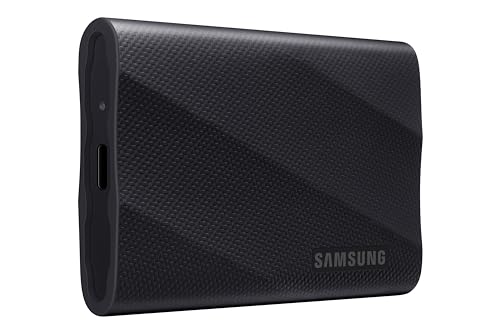
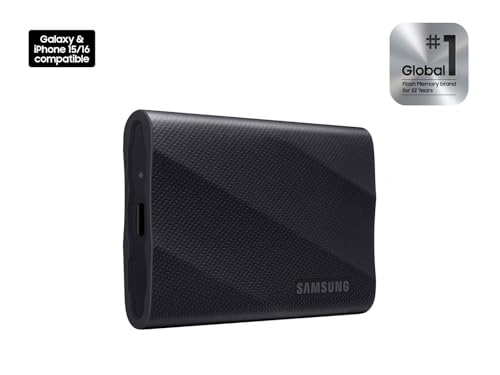
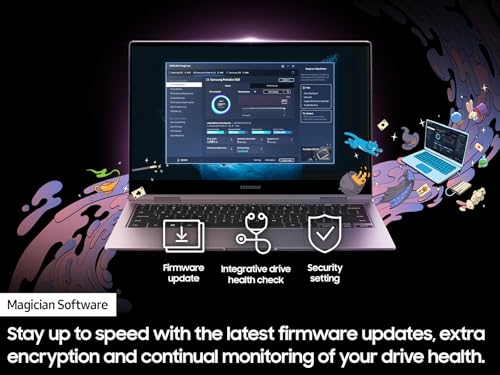
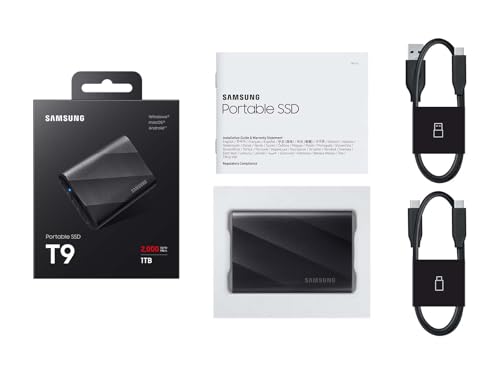
Samsung T9 Portable SSD 2TB, USB 3.2 Gen 2x2 External SSD, Up to 2,000 MB/s | External Solid State Drive for Gaming, Students and Professionals, MU-PG2T0B/AM, Black




As an Amazon Associate we earn from qualifying purchases. Product prices and availability are accurate as of the date/time indicated.
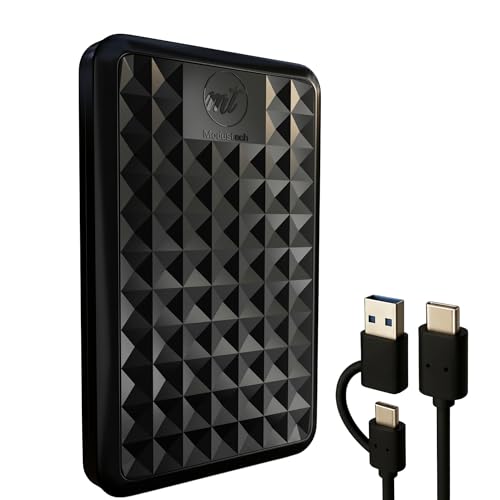
ModusTech Facet 500GB External Hard Drive Portable USB-C/USB 3.1 Plug & Play Ultra- Slim HDD Hard Drive for Backup, Gaming, PC, Mac, Laptop, PS4, Xbox, Smart TV (Black)


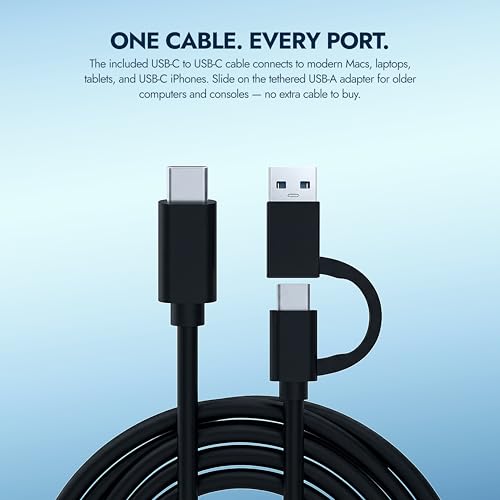

As an Amazon Associate we earn from qualifying purchases. Product prices and availability are accurate as of the date/time indicated.

1TB External Hard Drive, Up to 2100MB/s, USB 3.2 Gen 2 External SSD | Portable SSD for Mac, Windows PC, Laptops, Gaming, iPhone — Ideal for File Backup, Content Creators & Videographers
As an Amazon Associate we earn from qualifying purchases. Product prices and availability are accurate as of the date/time indicated.
Prices shown are approximate and for reference only. Prices change often, so please check the current price on Amazon before you buy.
Capacities and prices summarize typical street ranges for current versions; cost per terabyte falls as capacity rises in the HDD classes. Ratings are editorial, weighing capacity value, backup-duty reliability, software and scheduling support, and fit for the stated role.
The Six Backup Drives Reviewed
1. WD My Book: Best Overall Desktop Backup
The My Book line is the gaming desk’s standard for the unglamorous reasons standards form: capacities across the exact band this guide’s arithmetic names, a powered desktop format that sits permanently and behaves permanently, bundled backup software that covers the scheduling and versioning basics for the owner who wants the maker’s path, and a service and warranty ecosystem of the established kind. Its speed is the hard drive class’s, its noise is a desk’s murmur, and its price per terabyte is the arithmetic’s friend. For the single-PC gaming household buying its first real backup, it is the recommendation this guide defends, sized by Step One’s sum and configured by the steps that follow it, after which it disappears into the setup’s infrastructure, which is the highest praise a backup drive can earn.
2. Seagate Expansion Desktop: Best Value per Terabyte
Seagate’s Expansion desktop drives compete on the purest metric in the category, terabytes per dollar at the big capacities, in a simple enclosure that assumes the owner will bring their own software, the operating system’s tools or a dedicated application’s, which this guide’s doctrine counts as no hardship. Its virtues are capacity and price; its concessions are the bundled extras’ thinness and a design that treats the desk as a permanent post. For the builder whose backup plan is already written and who needs the raw room to execute it, it is the value row, and at the eight-terabyte class its cost per saved game, per clip, per hour of progress, is the smallest number in this article.
3. WD My Passport: Best Portable for Rotation
The My Passport is the doctrine’s second drive made pocketable: a bus-powered portable in capacities that cover a gaming library’s working set, ready to be the copy that rotates off the premises, to the family’s house, the office drawer, the safe deposit’s modern equivalents, and returns on the month’s rhythm. Its slimness is its travel virtue, its bundled software covers the owner who wants it, and its per-terabyte price is the portable class’s honest premium for the bag’s convenience. Bought as the system’s second citizen rather than its only one, it completes the 3-2-1 pattern at the lowest total cost in this guide, and its rating reflects a role performed exactly as the doctrine drew it.
4. Samsung T7 Shield: Best Fast Portable SSD
The T7 Shield serves the backups where speed and travel are real: ingest-fast transfers over its Gen 2 interface that turn a large backup into a coffee’s errand, a ruggedized body for the bag’s life, and capacities that reach into the library class at prices that state the SSD premium without apology. Its gaming-PC roles are specific and excellent: the laptop gamer’s only drive, the creator’s working-and-backup hybrid, the off-site copy whose restore speed will matter on the worst day. As a desk-bound main backup for a big library, its cost per terabyte buys speed the schedule cannot spend, and this guide grades it as the specialist it is, first in its class and deliberately not the default.
5. Toshiba Canvio Class: Best Budget Portable
Toshiba’s Canvio portables deliver the portable formula at the floor’s friendliest prices: bus-powered simplicity, capacities across the working band, and a no-drama design that has made them the quiet recommendation of a thousand build threads. Their bundled software and refinements are their price’s, and their role in this guide is the doctrine’s democratizer, the drive that lets a tight budget still field a rotated off-site copy or a laptop’s complete backup, since a modest backup that exists outranks a magnificent one deferred. For the builder whose main drive is the desktop row and whose second copy must be cheap to be real, it is the closing piece of many honest systems.
6. Seagate One Touch Hub Class: Best Desk Hub
The hub-class desktop drives add a desk’s convenience to the backup’s capacity: front-facing USB ports for the phone’s charge and the stick’s quick copy, capacities in the main band, and the maker’s backup software in the box. Their premium over the plain desktop rows buys the hub, which the crowded gaming desk, its ports all spoken for, may genuinely value, and their backup fundamentals are the class’s standard. Graded as a desk-infrastructure purchase as much as a storage one, it earns its row for the setup whose battlestation is also the household’s charging station, a common truth this guide is happy to serve rather than to judge.
Buying Guide: How to Choose and Set Up a Backup Drive for a Gaming PC
Step One: Do the Arithmetic and Assign the Roles
Perform the capacity sum of the guide’s first section with your machine’s real figures, used space, growth factor, versioning multiplier, and write the result where the shopping happens, since the figure, commonly four to eight terabytes for the main drive, is the purchase’s specification and not a suggestion. Assign the roles in the same sitting: the main backup, desktop class, at the arithmetic’s size; the off-site copy, portable class, sized to the library’s working set or to the irreplaceable subset where the budget divides them; and the cloud tier for saves and clips, configured in the game platforms’ own settings where they offer it and in a general backup service where they do not. Buy the main drive now and the rotation drive with it where the budget allows, since a doctrine half-built has a way of staying half-built, and the incidents the doctrine answers do not consult the owner’s purchasing schedule.
Step Two: Install the Schedule, the Versions, and the Air Gap
Connect the main drive and make it a backup in fact within the hour: choose the software, the maker’s bundle, the operating system’s image and file history, or a dedicated application, and configure the four settings that decide everything, a schedule that runs without your memory, weekly for the image and daily or continuous for the saves and documents where the tools allow; versioning kept for a span of months; verification or reporting turned on, with the reports directed somewhere you will see them; and the exclusions reviewed, so the drive is not faithfully backing up a cache while a save folder sits outside the fence. Observe the connection discipline the doctrine prescribes, the drive attached for its scheduled window and unplugged or powered down between, the air gap that ransomware and accidents cannot cross, with the rotation drive swapped on its own calendar. Run the first full backup overnight, and in the morning, check its log like a skeptic, because a backup’s first success, verified, is the moment the system becomes real.
Step Three: Test the Restore and Keep the System Honest
A backup untested is a hypothesis, so test it while the stakes are a drill: restore a folder, a save, a clip, to a scratch location and open it; walk the image restore’s first steps until the process is familiar rather than theoretical; and record the restore’s time, since that figure is the plan for the worst day and may argue for the SSD’s speed at the next purchase with an evidence no review can supply. Thereafter, keep the system on its light maintenance: the backup’s reports glanced at monthly, the drive’s health read by its maker’s utility on the season’s round, the capacity watched against the library’s growth so the next size is bought before the versions are squeezed, and the off-site rotation actually rotating, its calendar kept like an appointment. Replace the drives on their years, hard drives in backup duty being five-year citizens in planning, and migrate the archive deliberately rather than in a panic. Run so, the gaming PC acquires the property its owner actually wanted from this entire purchase, the ability to lose a drive, a machine, or a room, and lose nothing that mattered, which is the only definition of backup that has ever deserved the word.
Frequently Asked Questions About Backup Drives for Gaming PCs
How big a backup drive does a gaming PC need?
Work the guide’s arithmetic rather than adopting a stranger’s number: total your machine’s used space, multiply for the library’s growth across the drive’s life, commonly doubling for an active collection, and multiply again for the versions a real backup keeps, at least doubling the protected data. For most gaming PCs in 2026 that lands between four and eight terabytes for the main backup drive, a figure that buys, in the desktop hard drive class, at the category’s gentlest cost per terabyte, which is why the desktop format leads this guide’s table. Smaller libraries and laptop systems live happily at two to four, and the off-site portable can be smaller still where it protects the working set or the irreplaceable subset rather than the whole estate. The error to avoid is symmetrical and common: a drive bought to today’s used space alone, which the library outgrows inside a year, teaching exclusions that become losses, against which the arithmetic, done once on paper, is the complete defense.
Should I back up my games if I can just re-download them?
Re-downloadable is not the same as backed up, and the difference is measured in everything the store does not keep: save files where the platform’s cloud does not reach or was never enabled, mod lists and their load orders, configurations, screenshots and clips, and the sheer time of the re-download itself, a terabyte library on an ordinary connection being a day or more of waiting that a local restore turns into an hour. There is also the delisting and the version problem, games patched into different games, editions withdrawn, the local copy being the only copy of the thing you actually played. The pragmatic middle this guide endorses: image or file-backup the whole machine where the capacity arithmetic allows, which the desktop drives make cheap, and where it does not, protect the irreplaceable subset with religious completeness, saves first, then media, then configurations, and let the store’s servers carry the replaceable bulk with your blessing. What no tier of the doctrine permits is the assumption that because the games are safe, the gaming is, since the hours inside them were always the estate.
Is an external hard drive or an SSD better for backup?
For the main backup of a gaming PC, the hard drive, and it is not close on the metric that governs backup duty, cost per terabyte at the capacities the arithmetic demands, where the desktop HDD delivers four to eight terabytes at prices the SSD class multiplies several times over for the same room. The SSD’s virtues, speed and shock resistance, are real and are spent where they matter: the portable that travels, the laptop’s only drive, the creator’s frequent huge backups, and the restore you have timed and found wanting. A desk-bound drive copying on a schedule gains nothing from SSD speed across the ninety-nine nights it copies unattended, and loses the capacity the same money would have bought, capacity being the property whose absence silently converts backups into exclusions. Buy the hard drive for the desk, the SSD for the road where the road is real, and let each technology do the job its physics prices honestly, which is this guide’s general rule for storage and, come to think of it, for most of the machine.
How often should I back up my gaming PC?
On a schedule matched to how much progress you can bear to lose, which for most players resolves to this pattern: a full system image weekly, file-level backup of the saves, documents, and media daily or continuously where the tool supports it, and the off-site rotation monthly, with the cloud tier for the irreplaceable subset running on its own automatic rhythm beneath everything. The competitive and creative edges adjust the dials, the ranked player mid-season and the creator mid-project backing up the precious folders after every session as a ritual cheaper than regret. What matters more than the exact cadence is that it runs without being remembered, on the software’s schedule rather than on the owner’s intentions, and that its failures announce themselves, since the gap between a backup system and a backup intention is measured in the incidents that find it. Set the schedule at the purchase, test the restore at the drill, and the question graduates from a worry to a property of the machine, which is where every question in this guide is trying to live.
Related guides
- DDR5 Myths to Avoid in 2026: Speed, Latency, Capacity, and Compatibility Lies That Waste PC Builders’ Money
- Best Premium CPU for Creators: 6 Best Premium CPU for Creators Picks in 2026
- Best PC Case Size for Motherboard in 2026: How to Pick a PC Case Size for Motherboard That Fits Your Board, Cools Well, and Works for Your Build
- Best Budget Microfiber Cloth for Monitor Cleaning in 2026: 6 Budget Microfiber Cloths, Lint-Free, With a Size and a Price Range, for Monitor Cleaning
More from Amazon
Programs that pair well with the guide above. Offers and eligibility are set by Amazon and may change.
Free shipping on eligible items, Prime Video and more. Eligible new members can start with a free trial.
Start a Prime free trialAd-free music streaming. Eligible new subscribers can start with a free trial.
Try Music Unlimited freeA Prime membership for ages 18-24 with a trial period. Eligibility is set by Amazon.
See Prime for Young AdultsAudiobooks and podcasts to listen to on the go. Eligible new members can start with a free trial.
Try Audible freeAs an Amazon Associate we earn from qualifying purchases.
Write Your Review
No reviews yet. Be the first to share your experience!