
What's inside
- Why the Best Cloud Backup for PC Gamers Needs Unlimited Storage
- Best Cloud Backup for PC Gamers: Speed, Version History and Security
- Best Cloud Backup for PC Gamers Comparison Table
- Top Best Cloud Backup for PC Gamers Picks Reviewed
- How to Back Up Your Game Saves and Steam Library
- Buying Guide: How to Choose the Best Cloud Backup for PC Gamers
- Cloud Backup vs Local Backup vs Steam Cloud for Gamers
- Frequently Asked Questions
As an Amazon Associate I earn from qualifying purchases. This post may contain affiliate links at no extra cost to you.
Finding the best cloud backup for pc gamers is about choosing a backup service that protects your game saves, screenshots, mods, settings, and personal files without slowing down your PC, throttling your internet connection, or costing more than the games it protects. A good best cloud backup for pc gamers guide should explain storage limits, upload speed, restore speed, version history, encryption, and price, with a price that gives you real value. It should also explain how each service handles large game libraries, Steam folders, and external drives, because PC gamers do not back up like office users. They back up hundreds of gigabytes of installed games, saved progress that can represent hundreds of hours of play, and custom configurations that are painful to rebuild from scratch.
This guide explains what to look for in the best cloud backup for pc gamers, how to compare unlimited and limited plans, upload performance, file versioning, security, and price, and which cloud backup services work well in 2026 for PC gamers who play on Steam, Epic Games Store, Xbox PC, and other launchers. We focus on practical use for gamers who want automatic protection in the background, fast restores after a drive failure, and a service that does not interrupt a ranked match or a long download. Whether you have a 500 GB library or a 4 TB collection of games and media, the same principles apply: choose a service with enough storage, a clear upload policy, and a price that fits your library. Always check the storage limit, upload speed, restore options, and supported drives before you subscribe.
Our Top Picks
Why the Best Cloud Backup for PC Gamers Needs Unlimited Storage
The best cloud backup for pc gamers needs unlimited storage, or at least a very large storage allowance, because a modern PC game can take 100 GB or more, and a typical gaming PC can hold several terabytes of installed games, recordings, and screenshots. A service such as Backblaze is designed with unlimited storage for one PC, which makes it a strong fit for gamers who do not want to count gigabytes or choose which games to protect. A service with a 100 GB limit may work for documents and a few saves, but it will not protect a full game library, and it may force you to exclude folders that later turn out to matter.
Unlimited storage is not the only factor, however. A backup service also needs a fair upload policy. Some services throttle uploads after a certain amount of data, while others let you upload at full speed for as long as needed. A service with no stated throttling for normal personal use is better than a service with a low daily upload cap, because an initial backup of 2 TB can take days even on a fast connection. Look for a service that lets you schedule uploads, pause them during gaming, and resume them automatically. That control matters more to gamers than it does to most other users, because a backup that hogs bandwidth during a multiplayer match can cause lag, packet loss, and a lost game.
Best Cloud Backup for PC Gamers: Speed, Version History and Security
Upload and restore speed matter most for the best cloud backup for pc gamers, because the first backup is often the largest, and a restore after a failed SSD or a Windows reinstall is the moment when speed becomes urgent. Services with multi-threaded uploads are a good choice for most gamers, while services that upload one file at a time are slower on large libraries with thousands of small files. Services with a fast restore option, including a mailed hard drive restore where available, are better than services that only offer a slow download, because a 2 TB restore over a home connection can take a week.
Version history and security also matter. A service that keeps file versions for 30 days or longer is better than a service that keeps only the latest copy, because a corrupted save, a bad mod, or a ransomware infection can overwrite a good file. A service with private encryption, where you hold the key, is a good choice if you want stronger privacy, although it also means the provider cannot help you recover files if you lose that key. A service with two-factor authentication is a good choice for every gamer, because a backup account is a valuable target. Always check the version history, encryption options, and account security features before you subscribe.
Best Cloud Backup for PC Gamers Comparison Table
| Service | Storage | Version History | External Drive Backup | Upload Approach | Typical Price Range | Rating |
|---|---|---|---|---|---|---|
| Backblaze Computer Backup | Unlimited for one PC | 30 days, up to 1 year on paid add-on | Yes | Continuous, throttling controls | $70-$100 per year | 4.8/5 |
| IDrive Personal | 5 TB or 10 TB plans | 30 versions | Yes | Continuous, scheduled | $80-$100 per year | 4.7/5 |
| Acronis Cyber Protect Home Office | 250 GB to 1 TB cloud plans | Version history included | Yes | Continuous, scheduled | $50-$110 per year | 4.6/5 |
| Carbonite Safe | Unlimited on higher plans | 30 days | Yes, on higher plans | Automatic, scheduled | $70-$150 per year | 4.5/5 |
| Google One with Google Drive | 100 GB to 2 TB plans | 30 days for most files | Manual sync, limited backup | Sync, scheduled | $20-$100 per year | 4.6/5 |
| pCloud Premium | 500 GB to 2 TB plans | 30 days, up to 1 year on paid add-on | Manual sync, limited backup | Sync, scheduled | $50-$100 per year | 4.6/5 |
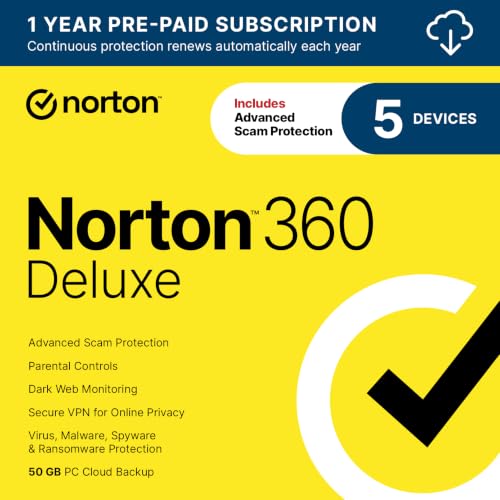
Norton 360 Deluxe 2027 Antivirus, 5 Devices, Auto-Renews [Download] | Includes Scam Protection, Advanced VPN, Dark Web Monitoring, & PC Cloud Backup
As an Amazon Associate we earn from qualifying purchases. Product prices and availability are accurate as of the date/time indicated.

Norton 360 for Amazon Antivirus, 5 Devices, Auto-Renews [Subscription] | Includes Scam Protection Pro, VPN & Dark Web Monitoring & PC Cloud Backup; Activation Required


As an Amazon Associate we earn from qualifying purchases. Product prices and availability are accurate as of the date/time indicated.

Micro USB 2.0 Otg Cable ABS Male to Female USB Adapter for Phones | Pc-free Backup Support, Keyboard and Game Controller Connection, Works Offline during Emergencies without Cloud or Wifi


As an Amazon Associate we earn from qualifying purchases. Product prices and availability are accurate as of the date/time indicated.
Prices shown are approximate and for reference only. Prices change often, so please check the current price on Amazon before you buy.
Top Best Cloud Backup for PC Gamers Picks Reviewed
Backblaze Computer Backup
Backblaze Computer Backup is a service with unlimited storage for one PC, version history of 30 days with an option for up to one year, external drive backup of Yes, upload approach of Continuous with throttling controls, and a price of $70 to $100 per year. It has a simple setup, unlimited storage, and a good value for PC gamers. It is a good choice if you want the best cloud backup for pc gamers with a proven Backblaze design, because it is one of the most trusted backup services for home users, it has unlimited storage for one PC, and it backs up external drives as well. Backblaze is made for large libraries, and it has automatic uploads, a web restore option, and a mailed drive restore option in the United States for large restores. The main limit to check is that it is licensed per computer, so a second gaming PC needs a second licence, and the version history beyond 30 days costs extra.
IDrive Personal
IDrive Personal is a service with storage of 5 TB or 10 TB plans, version history of 30 versions, external drive backup of Yes, upload approach of Continuous and scheduled, and a price of $80 to $100 per year. It has a large storage allowance, multi-device support, and a good value for PC gamers. It is a good choice if you want an IDrive plan with multi-device backup for PC gamers, because it has 5 TB or 10 TB plans, it supports several computers and mobile devices, and it is made by a trusted backup provider. It is ideal for gamers who also want to back up a laptop or a second PC, and its snapshot and versioning features help you recover a save file that was overwritten by a bad mod or a failed update. The main limit to check is the storage cap, because a very large game library can exceed 5 TB if you back up every installed game.
Acronis Cyber Protect Home Office
Acronis Cyber Protect Home Office is a service with storage of 250 GB to 1 TB cloud plans, version history included, external drive backup of Yes, upload approach of Continuous and scheduled, and a price of $50 to $110 per year. It has local and cloud backup, antivirus features, and a good value for PC gamers. It is a good choice if you want an Acronis plan with local and cloud backup for PC gamers, because it has 250 GB to 1 TB cloud plans, it can back up to a local drive as well as the cloud, and it includes security features that can help protect against malware. It is a popular choice for gamers who want one product for backup and device protection, especially if they already use Acronis for disk imaging. The main limit to check is the cloud storage size, because 250 GB or 500 GB will not cover a full Steam library, so you should use it for saves, settings, and important files, and use a local drive for the rest.
Carbonite Safe
Carbonite Safe is a service with storage of Unlimited on higher plans, version history of 30 days, external drive backup of Yes on higher plans, upload approach of Automatic and scheduled, and a price of $70 to $150 per year. It has automatic backup, unlimited storage on higher plans, and a good value for PC gamers. It is a good choice if you want a Carbonite plan with automatic backup for PC gamers, because it has unlimited storage on higher plans, it backs up automatically in the background, and it is made by a trusted backup provider. It is a good entry level option for gamers who want a set-and-forget service, and its automatic mode is useful if you do not want to manage backup schedules. The main limit to check is the plan tier, because the lowest plan has a storage limit and does not back up external drives, so you should check the plan details before you subscribe.
Google One with Google Drive
Google One with Google Drive is a service with storage of 100 GB to 2 TB plans, version history of 30 days for most files, external drive backup of Manual sync with limited backup, upload approach of Sync and scheduled, and a price of $20 to $100 per year. It has a familiar interface, strong sharing features, and a good value for PC gamers. It is a good choice if you want a Google One plan with cloud sync for PC gamers, because it has 100 GB to 2 TB plans, it works well with Google Docs and Android, and it is made by a trusted provider. It is ideal for gamers who want to back up documents, screenshots, and a small set of saves, and who already use Google services for other files. The main limit to check is that Google Drive is primarily a sync service, not a full system backup service, so it does not back up your whole PC in the same way as Backblaze or IDrive.
pCloud Premium
pCloud Premium is a service with storage of 500 GB to 2 TB plans, version history of 30 days with an option for up to one year, external drive backup of Manual sync with limited backup, upload approach of Sync and scheduled, and a price of $50 to $100 per year. It has a one-time payment option on some plans, strong file sharing, and a good value for PC gamers. It is a good choice if you want a pCloud plan with flexible storage for PC gamers, because it has 500 GB to 2 TB plans, it offers a lifetime payment option on some plans, and it is made by a trusted cloud storage provider. It is a good option for gamers who want to store recordings and screenshots in the cloud and access them from another device, and its file versioning can help you recover an overwritten config file. The main limit to check is the same as Google Drive: pCloud is primarily a sync and storage service, not a full PC backup service, so you should use it for selected folders rather than a whole drive.
How to Back Up Your Game Saves and Steam Library
To back up your game saves and Steam library, first find your save folders, with their locations, so you know what to protect, because Steam saves are often in Documents, AppData, or the Steam userdata folder, while other launchers use their own folders. Turn on your backup service, with its settings, so it includes those folders, and exclude your largest installed games if your plan has a storage limit, so you do not waste space on files you can redownload from Steam or Epic. Test a restore, with a small file, so you know your backup works, and check your backup, with its status, once a month, so you know it is still running. When you are done, keep a local copy, with an external drive, as well, so you have two copies of your most important saves, and follow the provider guidance for restores. A cloud backup is not a replacement for Steam Cloud, which already syncs many saves, but it is a useful second layer for games that do not use Steam Cloud, for mods, and for settings that Steam does not sync.
Buying Guide: How to Choose the Best Cloud Backup for PC Gamers
Start with your library size, your internet speed, and your budget. If you want unlimited storage for one PC, a service such as Backblaze Computer Backup is a good choice, because it is $70 to $100 per year. If you want multi-device backup with a large allowance, a service such as IDrive Personal is a good choice, because it is $80 to $100 per year. If you want local and cloud backup in one product, a service such as Acronis Cyber Protect Home Office is a good choice, because it is $50 to $110 per year. If you want a familiar sync service for documents and screenshots, a service such as Google One with Google Drive is a good choice, because it is $20 to $100 per year.
Next, check storage, upload speed, and restore options. A service with unlimited storage is better than a service without, because it covers a large game library. A service with multi-threaded uploads is a good choice, because it backs up large libraries faster. A service with a mailed drive restore option is better than a service without, because it can speed up a very large restore. A service with a clear upload policy is a good choice, because it lets you plan your first backup without surprise throttling.
Check version history, security, and ease of use together. A service with 30 days of version history or more is better than a service without, because it lets you recover a corrupted save. A service with two-factor authentication is a good choice, because it protects your backup account. A service with a simple dashboard is better than a service without, because it is easy to check whether your backup is current. Check your PC, with its drives, before you subscribe, so you know whether you need external drive backup, and check your internet plan, with its upload speed, so you know how long the first backup will take.
Check your budget, your use, and your future. Cloud backup for PC gamers typically costs $20 to $220 per year, depending on storage and features. A plan from $20 to $50 per year, such as a small Google One plan, offers a good way to start with documents and saves. A plan from $70 to $100 per year, such as Backblaze Computer Backup, offers unlimited storage for one PC. A plan from $80 to $100 per year, such as IDrive Personal, offers a large multi-device allowance. A plan from $200 to $220 per year is usually a premium plan with more storage, more devices, or extra security features, so check the plan details before you pay for it.
Finally, do not buy a cloud backup for pc gamers based only on price or storage. A service without version history will not help you if a save is corrupted, even if it is cheap, while a service with a low upload speed will take weeks to back up a large library, even if it has a good price. A service that does not back up external drives will miss your second SSD, even if it is easy to use. Choose a service that covers your saves, your settings, and your most important files, with a clear restore path, and with a price that fits your needs. Always check the storage limit, upload policy, and restore options before you subscribe, and test a small restore before you need a large one.
Cloud Backup vs Local Backup vs Steam Cloud for Gamers
To understand cloud backup vs local backup vs Steam Cloud for gamers, first think about a cloud backup, with its off-site storage, so you know it protects you if your PC is stolen or your house floods, and think about a local backup, with its external drive, so you know it is fast to restore but does not help if the drive is in the same room as your PC, and think about Steam Cloud, with its automatic save sync, so you know it is convenient but only covers games that support it. A cloud backup is a good choice if you want protection against drive failure, theft, and fire, because it stores a copy off site, while a local backup is a good choice if you want a fast restore, because it does not depend on your internet speed. When you are done, compare your needs, with their risk and speed, so you know which method is right, and follow the provider guidance for restores. For most PC gamers, the best setup is a combination: Steam Cloud for supported saves, a cloud backup for saves, settings, and documents, and a local drive for a fast full-system restore.
Frequently Asked Questions
What is the best cloud backup for pc gamers?
What is the best cloud backup for pc gamers depends on your library size and your budget. A service with unlimited storage for one PC, version history of 30 days, external drive backup of Yes, and a price under $100 per year, such as Backblaze Computer Backup at $70 to $100 per year, is a good choice for most PC gamers, because it has unlimited storage, it backs up external drives, and it is a proven backup service. A service with a large multi-device allowance, such as IDrive Personal at $80 to $100 per year, is also good, especially if you want to back up more than one computer. Choose a service that covers your saves and settings.
Do I need cloud backup if I use Steam Cloud?
Do you need cloud backup if you use Steam Cloud, yes, you need cloud backup if you use Steam Cloud, because Steam Cloud only syncs saves for games that support it, while a cloud backup can protect mods, settings, screenshots, and games from other launchers. A service such as Backblaze backs up your whole PC. Use Steam Cloud, with your supported games, so your saves sync automatically, and use a cloud backup, with your other files, so you have a second copy, and check your backup, with its status, once a month, so you know it is still running.
How long does the first backup take for a gaming PC?
How long does the first backup take for a gaming PC, the first backup takes days for a large gaming PC, because a 1 TB backup on a 20 Mbps upload connection can take more than four days, while a 100 GB backup on the same connection can take about eleven hours. A service such as IDrive lets you schedule uploads. Check your internet plan, with its upload speed, before you start, so you know how long the first backup will take, and exclude large installed games, with your backup settings, if you can redownload them, so your first backup finishes faster, and let the backup run overnight.
Can cloud backup slow down my games?
Can cloud backup slow down your games, a cloud backup can slow down your games if it uploads at full speed while you play, because it uses your internet bandwidth and your CPU, while a backup that is paused or throttled will have less effect. A service such as Backblaze lets you set throttling controls. Pause your backup, with its settings, before a ranked match, so it does not use bandwidth, and schedule uploads, with your backup service, for overnight, so they do not interrupt your gaming, and test your connection, with a speed test, if you notice lag while a backup is running.
Related guides
- Best PC Case for Beach House Use in 2026: Fractal Design, Corsair, Lian Li, and be quiet! Compared for a Salt Parish That Rusts an Idle Machine, Filters Read as a Cleaning Calendar, and a House That Stands Empty Between Visits
- Best Handheld Console Stand for PC Streaming in 2026: Docks With Video Out, Cooling Stands, and Desktop Rigs for the Deck, ROG Ally, and Legion Go
- Samsung vs WD NVMe Pros Cons in 2026: Which SSD Is Best for Gaming, Work, and Everyday PCs?
- Best RAM vs Storage for Speed in 2026: 3 DDR5 RAM Kits and 3 NVMe and SATA SSDs Compared for Speed, With a Price Range, for RAM vs Storage
More from Amazon
Programs that pair well with the guide above. Offers and eligibility are set by Amazon and may change.
Free shipping on eligible items, Prime Video and more. Eligible new members can start with a free trial.
Start a Prime free trialAd-free music streaming. Eligible new subscribers can start with a free trial.
Try Music Unlimited freeA Prime membership for ages 18-24 with a trial period. Eligibility is set by Amazon.
See Prime for Young AdultsAudiobooks and podcasts to listen to on the go. Eligible new members can start with a free trial.
Try Audible freeAs an Amazon Associate we earn from qualifying purchases.
Write Your Review
No reviews yet. Be the first to share your experience!