
What's inside
- How to Choose Monitor for Display Problems: Match the Symptom to the Specification
- How to Choose Monitor for Display Problems: Six Problem-Solving Monitors Compared
- The Six Monitors Reviewed by the Problem They Cure
- Buying Guide: How to Choose a Monitor That Fixes Your Display Problem
- Frequently Asked Questions About Choosing a Monitor for Display Problems
As an Amazon Associate I earn from qualifying purchases. This post may contain affiliate links at no extra cost to you.
Learning how to choose monitor for display problems starts with a diagnosis, because most people shop for a new screen while misnaming the problem the old one causes. Display problems arrive in families. There is the flicker family, headaches and eye fatigue that build across the workday from a backlight pulsing at low brightness. There is the posture and scale family, squinting at text rendered too small by a high resolution on a small panel, or swimming in blur from a low resolution stretched across a large one. There is the motion family, tearing and stutter when the screen’s refresh and the computer’s output disagree. And there is the color family, washed out, oversaturated, or simply wrong, which matters mildly to a spreadsheet and enormously to a photograph. Each family has a specification that governs it, a test that reveals it, and a class of monitor built to solve it, and this guide maps all four, compares six real, currently sold monitors graded as problem solvers, and gives you the checklist that turns a vague complaint, my screen hurts my eyes, into a purchase that fixes the named cause rather than buying a larger version of the same problem.
First, rule out the impostors, because a new monitor is an expensive cure for a cable’s disease. A flickering or blacking-out screen is a cable, a port, or a driver until proven otherwise: reseat or replace the cable with a certified one of the right standard, try the monitor’s other input, and update the graphics driver before the old screen is condemned. Blurry text on a new high resolution screen is often a scaling setting, fixed in the operating system rather than at the store. Colors that changed overnight are a night mode, a profile, or a cable that negotiated the wrong range, all free to fix. This guide assumes those free checks are done, the problem persists, and it lives in the panel’s own nature: its flicker, its pixel density, its refresh behavior, its color. That is the moment a purchase is the cure, and the rest of this article is about making it the last purchase the problem ever requires.
Our Top Picks
How to Choose Monitor for Display Problems: Match the Symptom to the Specification
Flicker and Eye Strain: PWM, Brightness, and the Low Blue Light Question
The commonest display problem in the home office is the workday headache, and its commonest mechanical cause is pulse width modulation, the technique many backlights use to dim, switching the light on and off hundreds or thousands of times a second. At full brightness the duty cycle hides it; at the reduced brightness of a dim room the pulses widen apart, and a meaningful minority of people perceive the result as fatigue, headache, or a shimmer at the edge of vision. The cure is a specification with several marketing names and one meaning: a flicker-free, DC dimmed, or hybrid dimmed backlight, certified by TÜV Rheinland’s flicker free testing where the maker submits to it, which holds the light steady across the brightness range. Buy that first if headaches are your symptom. Around it, the supporting cast matters: a matte anti-glare coating against the window’s reflections, brightness that adjusts to the room or at least adjusts easily, a height adjustable stand that puts the screen’s top at eye level, because half the eye strain blamed on panels is posture wearing a disguise, and low blue light modes, which this guide treats as a comfort preference for evenings rather than a medical claim, useful, harmless, and no substitute for the flicker fix and a break rhythm.
Blur, Tiny Text, and the Pixel Density Equation
Sharpness problems are arithmetic wearing a disguise. A monitor’s text clarity is its pixel density, pixels per inch, decided by resolution divided by size: a 27 inch 1440p screen lands near the sweet spot where text is crisp at normal scaling, a 24 inch 1080p is softer, a 27 inch 1080p is visibly grainy at desk distance, and a 27 inch 4K is so fine that the operating system must scale text up, which modern systems do cleanly and older software does badly, occasionally producing the exact blur the buyer fled. Choose the density for your distance and your software: 1440p at 27 inches is this guide’s default prescription for desk work, 4K at 27 or 32 inches for the photo and design work that uses it, and 1080p reserved for smaller screens and gaming where its softness is the price of speed. The second sharpness impostor is the connection: a monitor fed below its native resolution, or through an adapter that caps it, displays the blur of the negotiation rather than the panel’s ability, so the buying guide’s cable step is part of the cure.
Tearing, Stutter, and Color: Refresh Honesty and Panel Character
Motion problems divide by cause. Tearing, the horizontal split when the game or video outruns the screen, is cured by adaptive sync, FreeSync or G-Sync compatibility, which lets the monitor’s refresh follow the computer’s output, and it is now common enough that no gaming or mixed use purchase should omit it. Stutter at the desktop is more often the cable’s bandwidth or a refresh rate left at 60 in the settings after buying a faster screen, a free fix this guide lists because it is missed constantly. Color problems are panel character: the washed out look is a contrast or a wrong color range setting as often as a panel, the oversaturated look is a wide gamut screen showing unmanaged content, and the professional’s wrong is a calibration question, answered by the color accurate lines in this table with their factory reports and hardware calibration support. Name which of these is yours before shopping, because the monitor that cures tearing and the monitor that cures color are different rows in the table, and buying one for the other’s disease is how display problems survive a purchase.
How to Choose Monitor for Display Problems: Six Problem-Solving Monitors Compared
| Monitor Model | Key Specs | Display Problem It Solves Best | Typical Price Range | Rating |
|---|---|---|---|---|
| BenQ PD2706U | 27-inch 4K IPS, flicker-free and low blue light technologies in class, high color accuracy class, USB-C with power delivery | Best overall for eye strain and color work | $450 – $600 | 4.7 / 5 |
| Dell UltraSharp U2724D | 27-inch 1440p IPS Black class, high contrast in class, 120Hz in class, ambient light sensor class, comfort certifications | Best for all-day office eye comfort | $450 – $600 | 4.7 / 5 |
| ASUS ProArt Display PA279CRV | 27-inch 4K IPS, high Adobe RGB and DCI-P3 coverage class, factory calibration class, flicker-free class | Best for color accuracy problems | $400 – $520 | 4.6 / 5 |
| BenQ GW2790Q | 27-inch 1440p IPS, eye-care feature suite in class, flicker-free class, coding and reading modes in class | Best budget eye-care monitor | $200 – $280 | 4.5 / 5 |
| LG UltraGear 27GP850-B | 27-inch 1440p Nano IPS class, high refresh with adaptive sync class, fast response class | Best for tearing and motion problems | $300 – $420 | 4.5 / 5 |
| ViewSonic VG2756V-2K | 27-inch 1440p IPS, built-in camera and microphone class, flicker-free class, USB-C docking class | Best for video-call and desk clutter problems | $380 – $480 | 4.3 / 5 |
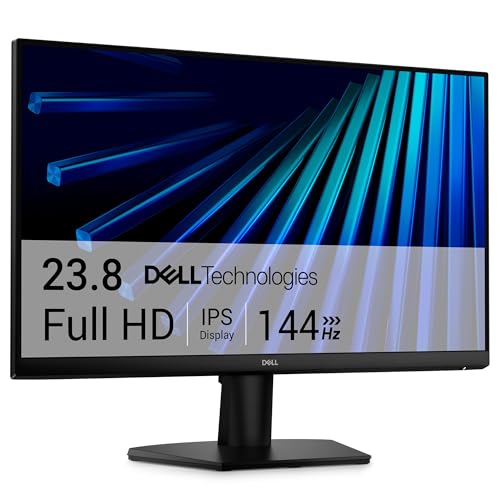
Dell 24 Monitor - SE2426H - 23.8-inch FHD (1920x1080) 144Hz 1ms Display, in-Plane Switching (IPS) Technology, AMD FreeSync™, TÜV 3-Star 2X HDMI, Tilt
As an Amazon Associate we earn from qualifying purchases. Product prices and availability are accurate as of the date/time indicated.

WGK 15.6 inch Portable Monitor 1080P FHD Travel Display HDMI/USB-C Compatible with Laptops, Desktops, Phones, PS, Mac, Xbox, Switch, and Other Gaming Devices Includes Stand and Speakers VESA


As an Amazon Associate we earn from qualifying purchases. Product prices and availability are accurate as of the date/time indicated.
Prices shown are approximate and for reference only. Prices change often, so please check the current price on Amazon before you buy.
Features summarize manufacturers’ published information for current versions; certification and port details vary by region and revision. Ratings are editorial, weighing problem-solving effectiveness for the named symptom, panel quality, ergonomics, connectivity, and value.
The Six Monitors Reviewed by the Problem They Cure
1. BenQ PD2706U: Best Overall Problem Solver
BenQ built its professional line on the eye care brief before it was fashionable, and the PD2706U is that brief at 4K: a flicker-free backlight across the brightness range, low blue light modes that shift color temperature without the crude yellow of cheap implementations, color accuracy in the design class with the uniformity technology that keeps a white screen white at its edges, and USB-C that charges the laptop it displays. For the reader whose complaint is the compound one, headaches plus colors they cannot trust plus a desk of cables, it answers all three in one panel. Its refresh is the office’s 60Hz class, so the gamer should look at the LG row, and its price is the professional tier’s. Within the brief this article is written for, it is the most complete cure in the table.
2. Dell UltraSharp U2724D: Best for All-Day Office Comfort
The U2724D attacks the workday as a system: an IPS Black panel whose contrast makes text sit crisper against its background at the 1440p density this guide prescribes, a higher than office standard refresh that makes scrolling and window work feel calm, an ambient light sensor that keeps brightness matched to the room, the variable that drives both flicker perception and fatigue, and Dell’s comfort certifications and stand ergonomics, height, tilt, swivel, and pivot, all present. Its color is excellent for office and light creative work rather than the ProArt’s reference class. For the employee whose display problem is the eight hour day itself, it is the most considered answer in the table, and its warranty and panel guarantee policies are the enterprise grade its name promises.
3. ASUS ProArt PA279CRV: Best for Color Problems
The ProArt exists for the buyer whose problem is trust: colors that must match between screen, proof, and print. Its wide gamut coverage spans the photographic and video standards, its factory calibration arrives with the report in the box, and its hardware calibration support means the accuracy can be maintained with a colorimeter across the panel’s life rather than decaying from the day of purchase. Around that core it keeps the eye care decencies, flicker-free backlighting and a matte finish, and USB-C connectivity for the laptop studio. It will not cure a gamer’s tearing and it is not priced to, and for the photographer, designer, and video editor whose current monitor lies to them professionally, it is the row that ends the lying at a price the working amateur can reach.
4. BenQ GW2790Q: Best Budget Eye-Care Monitor
The GW2790Q distills the eye care brief to its essentials at a home office price: the 27 inch 1440p density this guide prescribes, a flicker-free backlight, BenQ’s brightness intelligence that adapts the screen to the room’s light in its class implementation, and modes tuned for reading and coding that adjust contrast and sharpness for text. Its stand is simpler than the professionals’, its color is good rather than reference, and its speakers and ports are the class’s standard. For the reader whose diagnosis is workday fatigue on a budget, it delivers the governing specification, the steady backlight, without charging for the color laboratory, and it is the monitor this guide sends to more homes than any other row when the symptom is headaches and the budget is real.
5. LG UltraGear 27GP850-B: Best for Tearing and Motion
The UltraGear row is the motion clinic: a fast 1440p panel with a high refresh rate, adaptive sync across the major standards, and response tuning that keeps fast content from smearing, which together retire tearing, stutter, and ghosting as a combined complaint. Its color is the gaming class’s good, vivid and enjoyable rather than reference, its backlight in this class is flicker-free at normal brightness, and its ergonomics include the height adjustment the office rows insist on. For the mixed household where the display problem performs nightly in games and weekly in films, it is the correct prescription, and the office-only buyer should spend the same money up the table where the certifications live. Diagnosis first, remember: this row cures motion, brilliantly, and only motion.
6. ViewSonic VG2756V-2K: Best for the Video-Call Desk
The VG2756V-2K treats a modern display problem the spec sheets ignore: the remote worker’s desk, where the monitor must also be the camera, the microphone, and the dock. Its built-in webcam and microphone array put the camera at eye level, where a laptop’s never is, its USB-C connection carries video, data, and charging in one cable, and its panel keeps the eye care fundamentals, 1440p density and a flicker-free class backlight. Its panel is a step behind the Dell’s and its price reflects the integrated hardware it replaces, a camera, a dock, and a cable drawer. For the household whose display problem is really a desk problem, it is the tidy answer, and it closes the table as the reminder that not every screen complaint is about the screen.
Buying Guide: How to Choose a Monitor That Fixes Your Display Problem
Step One: Run the Free Diagnosis Before Spending
Work the impostor list in order, because each is free and each is common. Replace the cable with a certified cable of the monitor’s native standard and try a different port; update the graphics driver from the chip maker’s site; set the monitor to its native resolution and its full refresh rate in the operating system’s display settings, the step that cures a remarkable share of blur and stutter; turn off night mode and reset the monitor’s own picture settings to its standard mode; and test the screen on a second computer if one exists, which divides the world into monitor problems and computer problems in one move. Whatever survives that list is the panel’s nature, and it gets a name, flicker, density, motion, or color, which is the name you shop by. Keep the notes, because they are also the return justification if the new screen inherits a problem that turns out to have lived in the computer all along.
Step Two: Buy the Specification That Governs Your Symptom
Shop by the governing specification rather than by the headline numbers. For fatigue and headache: a certified flicker-free backlight across the brightness range, a matte screen, an ambient sensor or easy brightness control, and a fully adjustable stand, from the BenQ and Dell rows’ class. For text clarity: the density equation, 1440p at 27 inches as the desk default, 4K where the work uses it, fed by a cable and port that carry the full resolution and refresh. For motion: adaptive sync and a refresh rate matched to your computer’s strength, with the settings step planned for the day it arrives. For color: the gamut coverage of your standard, a factory calibration report, and hardware calibration support if the accuracy must be maintained professionally. Resist the bundle of irrelevant virtues, the gaming monitor’s speed bought for a spreadsheet’s headaches, the reference panel’s gamut bought for a tearing problem, because a monitor purchase cures the symptom its specifications govern and merely redecorates the rest.
Step Three: Set It Up Like the Cure Depends on It, Because It Does
The new monitor inherits your desk, and the setup decides whether the cure completes. Position the screen an arm’s length away, its top at or slightly below eye level on its adjustable stand, perpendicular to the window rather than facing it, and set brightness to match the room, the screen should look like paper under the room’s light, not like a lamp. Enable the adaptive sync and the full refresh in the settings, load the maker’s color profile where one is provided, and give your eyes the honest trial: a full working week at the new settings before judging, because eyes adapted to a bad screen experience a good one as strange for two days. Keep the return window in view during that week and use it without sentiment if the named symptom survives, since a display problem that persists across two correct monitors is a medical or a computer problem wearing a monitor’s clothes, and the next step is an eye examination or a technician, not a third screen. That honesty is this guide’s last specification, and it is the one that finally fixes things.
Frequently Asked Questions About Choosing a Monitor for Display Problems
Can a monitor really cause headaches, and which feature fixes it?
Yes, through mechanisms that are understood well enough to shop by. The leading mechanical suspect is backlight flicker from pulse width modulation at low brightness, which a flicker-free or DC dimmed monitor removes by holding the light steady; sufferers typically report the difference within the first working week, which is why this guide grades that certification first for the headache symptom. The accomplices matter too: glare from a glossy screen in a bright room, brightness mismatched to the room in either direction, text too small for the viewing distance, and a screen height that bends the neck all day each produce their own fatigue that a panel purchase alone half cures. Buy the flicker-free screen with the matte finish and the adjustable stand, set it up by this guide’s third step, keep a break rhythm, and if the headaches persist with all of that correct, the next appointment is with an eye doctor, because monitors are a cause of headaches, not the only cause, and a new screen is a poor substitute for a prescription.
Is 4K worth it for fixing blurry text?
Only when the density equation says so, because blur is a density problem and 4K is one way, not the only way, to raise it. At 27 inches, 1440p already delivers crisp text at standard scaling for most eyes at desk distance, at a lower price and with no scaling quirks in older software, which is why it is this guide’s default prescription. At 32 inches, 1440p’s density falls to the grainy side and 4K becomes the correct cure; at 27 inches, 4K earns its premium for the photo, video, and design work that uses the pixels, and for readers who run high scaling happily on a modern operating system. The blur that 4K cannot fix is the impostor kind, a screen fed a lower resolution by a limited cable or adapter, or an application that ignores scaling, and the buyer who upgrades the panel before checking the connection may purchase a magnificent display of the same blur. Run the diagnosis first, then let size and work, not the bigger number, decide.
What is the difference between flicker-free and low blue light?
They address different things and are marketed as if they were one. Flicker-free describes the backlight’s behavior over time: a steady light rather than a rapidly pulsing one, a mechanical property, certified by independent testing where the maker submits, and the feature this guide ties to the fatigue and headache symptom. Low blue light describes the light’s color content: a reduction of the blue portion of the spectrum, usually by shifting the picture warmer, which many people find more comfortable in the evening and which operating systems and glasses also provide. The evidence and the claims around blue light and eye health are more contested than the marketing suggests, and this guide’s position is to treat it as a comfort setting, harmless and pleasant at night, while treating flicker as the engineering specification worth paying for. A monitor can offer either without the other; the headache sufferer should ensure the flicker-free certification is present and regard the blue light modes as the bonus they are.
Should I replace my monitor or fix my setup for eye strain?
Fix the setup first when the monitor is innocent, and replace it when the diagnosis names the panel. The setup fixes are the free list in this guide: the screen at arm’s length with its top at eye level, brightness matched to the room, glare controlled by position and curtains, text scaled to a comfortable size, the full refresh and native resolution actually enabled, and a break rhythm that gives the focusing muscle its intervals. Those cure the majority of eye strain complaints this guide hears, because most desks are set up worse than most panels are built. Replace the monitor when the free list is done and the symptom tracks with the panel’s known nature: a flickering backlight at your working brightness, a density too low for its size, a glossy screen in an unchangeable bright room. Then buy by the governing specification, from the rows above, and set the new screen up as carefully as the old one deserved, because the best monitor in this table, installed at the wrong height in a glare field, will be back in this article’s first paragraph within a month.
Related guides
- Best Mid Tower Case Size Guide in 2026: How to Use This Best Mid Tower Case Size Guide to Pick a Mid Tower Case That Fits Your Motherboard, GPU, and Desk
- Best High End GPU for 1440p Gaming in 2026: Best High End GPU for 1440p Gaming for Smooth Frames, Good Graphics, and Simple PC Use
- Best Scanner for PC Small Offices in 2026: Best Scanner for PC Small Offices
- Best Stylus vs Mouse for Tablet Editing in 2026: Apple Pencil Pro, S Pen, and MX Master Compared for Photo, Video, and Drawing Work
More from Amazon
Programs that pair well with the guide above. Offers and eligibility are set by Amazon and may change.
Free shipping on eligible items, Prime Video and more. Eligible new members can start with a free trial.
Start a Prime free trialAd-free music streaming. Eligible new subscribers can start with a free trial.
Try Music Unlimited freeA Prime membership for ages 18-24 with a trial period. Eligibility is set by Amazon.
See Prime for Young AdultsAudiobooks and podcasts to listen to on the go. Eligible new members can start with a free trial.
Try Audible freeAs an Amazon Associate we earn from qualifying purchases.

Write Your Review
No reviews yet. Be the first to share your experience!