
What's inside
- Best Hard Drive Dock for PC Backups: Clone, Backup, and the Bare Drive’s Manners
- Quick Comparison: Best Hard Drive Dock for PC Backups Models
- Detailed Reviews: Best Hard Drive Dock for PC Backups Picks
- Buying Guide: How to Choose the Best Hard Drive Dock for PC Backups
- Frequently Asked Questions About Best Hard Drive Dock for PC Backups
As an Amazon Associate I earn from qualifying purchases. This post may contain affiliate links at no extra cost to you.
A hard drive dock is the least glamorous object in computing and one of the most consequential, because it is the door through which a household’s and a small studio’s whole past passes: the bare drives in the drawer, each one a former computer’s entire memory, the backup rotation’s citizens, the clone that will resurrect a failed machine on a bad Tuesday. The best hard drive dock for PC backups is therefore not bought by its speed figure, though speed will be graded here, but by its trustworthiness at four moments: the moment a bare drive, with its circuit board exposed and its label faded, is lowered into it by a hand that must not fumble; the long hour of a clone or a backup, at a sustained pace, with the drive growing warm in open air; the moment of removal, ejected properly in the system’s provisions, spun down, lifted straight; and the year of storage that follows, in a case, labelled, in a parish the dock’s owner has actually arranged. This guide compares the current field as a backup system’s front door, teaches the difference between a dock and an enclosure, between a clone and a backup, which are two different religions sharing a building, and states, at its head, the doctrine that outranks every row in its table, in this site’s standing words for every storage article it writes: a backup is not a backup until it exists in more than one place, a dock makes copying easy and copying is not the same as safety, and the rotation this guide prescribes, drives in their cases, one copy in a different building in the careful household’s pattern, is the article’s real product, of which the dock is merely the instrument.
Compatibility is the first honesty, and it has two names, as fits do in every guide on this site. The drive’s name: its size, 2.5-inch or 3.5-inch in their stated dimensions, and its interface, SATA in its generations against NVMe, which is a different physical citizen entirely and does not enter a SATA dock at any price, a confusion the aisle encourages and this guide forbids, since the bare M.2 stick in a modern drawer wants an NVMe enclosure in its own pattern and not a dock in this table. A 3.5-inch drive also brings its power appetite, which a USB port alone cannot feed, so a dock serving it carries its own power supply in its maker’s provisions, a brick whose presence in the box is a specification and whose absence disqualifies the dock for that parish. The computer’s name is the second: its USB in its stated class and generation, which caps the dock’s speed exactly as it caps any drive’s in this site’s storage guides, and its support for the dock’s stated provisions, UASP in its terms being the protocol that lets a dock work at its honest pace rather than at a legacy crawl, a support modern systems in their makers’ figures broadly provide and older ones should have verified in their documents before a disappointment is scheduled.
The products compared here are real, currently sold SATA hard drive docks from StarTech, Sabrent, Thermaltake, FIDECO, Inateck, and Cable Matters, spanning single and dual bays, offline cloning patterns in their makers’ designs, and tool-free citizens of every parish. They are graded on the four moments: handling first, a bay in its design that guides a drive straight, holds it without a wobble, and releases it by an eject pattern in its provisions that does not ask a fingernail to pry against a circuit board; sustained pace second, across a whole drive’s backup and not a benchmark’s first minute, with the drives’ warmth in open air entered as the dock’s one thermal virtue, since a bare drive in a dock breathes as no enclosed drive can; cloning third, where a model offers it, an offline pattern in its design that copies a drive to a drive of equal or greater capacity in its stated provisions, without a computer, at a pace and with a progress honesty in its pattern that a nervous owner can audit; power and citizenship fourth, supplies, switches, and activity provisions in their designs; and the maker’s support, because a dock is a decade’s door and its maker’s provisions in their stated terms are part of its price.
Our Top Picks
 SUITOK Dual Bay SATA Hard Drive Cloner Dock5.90 x 4.72 x 2.60 inches5.9 x 4.72 x 2.6 inches0.6 poundsCheck on Amazon
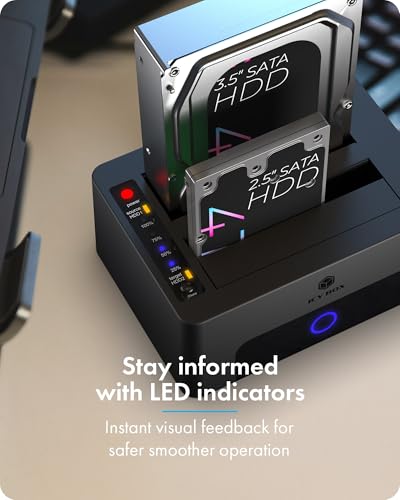
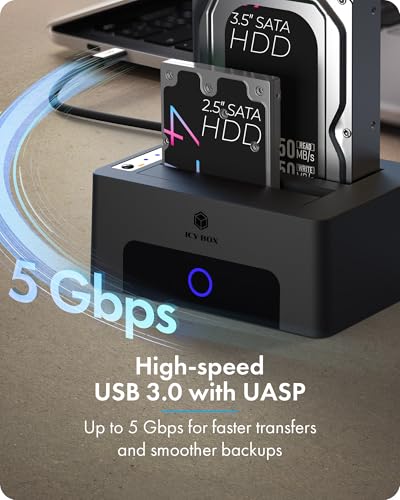
 ICY Box Dual-Bay Hard Drive Cloner Dock Station2 Bay Cloner5.12 x 2.95 x 2.36 inches0.9 poundsCheck on Amazon
Best Hard Drive Dock for PC Backups: Clone, Backup, and the Bare Drive’s Manners
Cloning Is Not Backing Up, and Both Are Citizens
The two religions should be separated before any money is spent, because a dock can serve both and a buyer must know which service they are purchasing. A clone is a drive’s twin: the whole of it, partitions, system, and data in their patterns, copied sector by sector in the dock’s offline provisions or by the computer’s software in its, producing a drive that can take the original’s place in a machine and boot its life as if nothing had happened, in the provisions of the systems that allow it. A clone is the correct instrument for migrating to a new drive, for resurrecting a failing one while it can still be read, and for a spare kept ready against a machine’s worst day, and its terms are strict: the destination must be of equal or greater capacity in the dock’s stated figures, the source’s errors, where a failing drive has them, are copied with a fidelity the owner should understand, and a clone is a snapshot of a moment, growing stale from the hour it is made. A backup is a system’s memory: files, in their versions, copied by the backup software in its provisions on a schedule, to a drive that is one citizen in a rotation, restorable a file at a time or a machine at a time by the software’s own pattern. A dock serves a backup rotation beautifully, bare drives in their cases slotted in their turn, and it serves a clone at its button, and the disaster this guide exists to prevent is the household that makes a clone once, calls it a backup for three years, and meets its staleness on the day of the fire.
The rotation is the doctrine, and it is written here as the article’s standing liturgy. Drives are bare only in transit: they live in anti-static cases in their patterns, labelled in the owner’s hand with the drive’s contents, its machine, and its date, because an unlabelled bare drive is a mystery with a motor and a household’s drawer commonly holds four of them in a perfect row of amnesia. A backup is made on its schedule, verified by the software’s provisions in its terms where it offers verification, because an unverified backup is a hope with a progress bar, in this site’s repeated phrase; the drive is ejected in the system’s provisions, allowed its spin-down in the dock’s pattern, lifted straight by its edges with its board untouched, and returned to its case and its parish, one copy of the household’s memory living, in the careful pattern, in a different building, a relative’s shelf, an office drawer, a safe deposit’s parish, against the day the first building is the story. Bare drives are handled as the archives they are: by their edges, on a clear surface, away from the carpet’s static and the coffee’s parish, never stacked, never carried loose in a bag, because a dropped bare drive is not a broken object but a concluded archive.
Speed, Warmth, and the Long Hour’s Manners
A dock’s speed is graded across a drive, not across a benchmark. Its stated USB class in its maker’s figures sets its ceiling, as every interface in this site’s storage guides does; its UASP provisions in its terms set its working pace with a modern system; and the drive inside it sets its own, a spinning drive in its stated figures delivering its platter’s honest pace, which no dock can exceed and a good dock does not diminish, while a solid-state drive in a dock can reach the interface’s ceiling and warm itself doing it, in open air that forgives what an enclosure would not. The long backup’s manners follow: the dock on a firm surface in its pattern, its power supply’s cable dressed and not dangling as a trip’s invitation, the drive’s label side readable for the log, and the computer’s own sleep provisions in its settings governed for the duration, because a machine that sleeps at the backup’s fortieth minute has a sense of theatre its owner should overrule in advance. Ejection is the hour’s last discipline and it is not optional theatre: the system ejects in its provisions, the dock’s activity in its pattern falls quiet, the drive spins down by its sound and its stillness, and only then is it lifted, straight, by its edges, because a drive removed mid-write or mid-spin is being taught, by its owner, the exact failure it was bought to insure against.
Offline cloning has its own manners and they are sterner, because the dock, unassisted by a computer’s judgement, will do exactly what its button is told. The two drives’ identities, source and destination, are confirmed twice, by label, by capacity, by the dock maker’s stated bay pattern in its documents, because a clone performed in the wrong direction is the one catastrophe in this entire article that no backup can redeem, the destination’s contents, which were the point, overwritten by the source’s, which were the past; this guide directs its readers to perform the confirmation as a liturgy, aloud, with the destination’s label read back, in the pattern of every checklist that has ever stood between a human and an irreversible button. The destination’s capacity in its stated figures must equal or exceed the source’s, the clone’s progress in the dock’s pattern is left to complete without the dock being moved, warmed against, or powered from a strip that a foot can switch, and the finished clone is tested, booted or mounted in its provisions, before the source is retired or wiped, because a clone unverified is, in this site’s standing phrase, a rumour with a label.
Quick Comparison: Best Hard Drive Dock for PC Backups Models
| Model | Bays, Interface and Key Specs | Best For | Typical Price Range |
|---|---|---|---|
| StarTech Dual Bay Docking Station Class | Dual bay in StarTech’s line, USB pattern in maker’s stated class, offline clone provisions in maker’s terms, power supply in maker’s design | Best hard drive dock for PC backups overall | $60 – $90 by pattern |
| Sabrent Dual-Bay Docking Station Class | Dual bay in Sabrent’s line, USB pattern in maker’s stated class, clone pattern in maker’s design, stated drive provisions in maker’s figures | Best value dual bay | $40 – $60 by pattern |
| Thermaltake BlacX Class | Single bay in Thermaltake’s line, USB pattern in maker’s stated class, eject pattern in maker’s design, long production pattern in maker’s range | Best single bay | $35 – $55 by pattern |
| FIDECO Dual Bay Class | Dual bay in FIDECO’s line, clone provisions in maker’s terms, USB pattern in maker’s stated class by pattern | Best budget cloning | $35 – $55 by pattern |
| Inateck Docking Station Class | Single and dual patterns in Inateck’s line, USB pattern in maker’s stated class, offline provisions in maker’s terms by pattern | Best simple backup dock | $30 – $50 by pattern |
| Cable Matters Dock Class | Single bay patterns in Cable Matters’ line, USB pattern in maker’s stated class, stated provisions in maker’s figures | Best spare and travel dock | $25 – $40 by pattern |
SUITOK Dual Bay SATA Hard Drive Cloner Dock USB C 5Gbps | 2.5" 3.5" | 40TB | HDD SSD Docking Station, Offline Duplicator External Data Reader Storage Backups Recovery RTL9201DP RGB Light for Laptop PC


As an Amazon Associate we earn from qualifying purchases. Product prices and availability are accurate as of the date/time indicated.

SABRENT USB 3.0 to SATA Hard Drive Dock with Cooling Fan (EC-DFFN) | Lay-flat hard drive enclosure/dock; 2.5"/3.5" HDD/SSD; built-in fan; UASP; up to 22TB; external hard drive enclosure


As an Amazon Associate we earn from qualifying purchases. Product prices and availability are accurate as of the date/time indicated.
ICY Box Dual-Bay Hard Drive Cloner Dock Station for 2.5&3.5 SSD HDD Up to 60TB , USB C 3.0 to SATA I/II/III Hard Drive Enclosure with Offline Clone and Duplicator Function Tool Free Plug&Play




As an Amazon Associate we earn from qualifying purchases. Product prices and availability are accurate as of the date/time indicated.
Prices shown are approximate and for reference only. Prices change often, so please check the current price on Amazon before you buy.
Bays, drive sizes and interface, USB class and UASP provisions, offline clone terms including destination capacity, power supply provision, and supported systems are each maker’s stated details for the current version and pattern, and SATA and NVMe are different interfaces that no dock in this table bridges. Ratings are editorial for backup service: handling and ejection manners, sustained pace, clone provisions and their clarity, power citizenship, and support.
Detailed Reviews: Best Hard Drive Dock for PC Backups Picks
1. StarTech Dual Bay – Best Overall
StarTech’s dual bay takes the overall rating as the backup desk’s professional pattern in its line: bays in its design that handle a bare drive like an archive, clone provisions in its terms stated with an engineer’s clarity, a power supply in its provisions sized for the 3.5-inch parish, and a maker’s support in its stated terms behind a decade of service. For the household or studio whose drawer is an archive, it is the reference.
Proven by the rotation, it earns its place outright.
2. Sabrent Dual-Bay – Best Value Dual Bay
Sabrent’s dual bay prices the two-bay pattern, clone citizen included in its design, at a figure the single bays charge in its line, with stated provisions in its figures for the rotation’s ordinary drives. For the household beginning its rotation, it is the economical door, fitted and ejected by the guide’s liturgy like every row here.
As the value dual, it stands.
3. Thermaltake BlacX – Best Single Bay
Thermaltake’s BlacX is the category’s elder citizen in its line, a single bay in its design with an eject pattern in its provisions that treats a bare drive gently, in production across a span that has made it the drawer’s familiar. For the one-drive-at-a-time backup, honestly scheduled, it remains the simple answer.
As the single, it is soundly placed.
4. FIDECO Dual Bay – Best Budget Cloning
FIDECO’s dual bay brings the offline clone to the budget’s parish in its line, provisions in its terms to be read with the article’s whole rigour, the source and destination liturgy performed aloud, because a budget clone is a clone and its button is as irreversible as any in the table.
For the careful budget, it earns its place.
5. Inateck Class – Best Simple Backup Dock
Inateck’s patterns serve the straightforward rotation in its line, single and dual in its range, provisions in its terms without a hobby attached, for the owner whose dock is a door and not a project. Its manners are its documents’, performed as directed.
As the simple row, it is soundly placed.
6. Cable Matters Class – Best Spare Dock
Cable Matters’ docks close the table as the second door in its line, a spare for the office drawer, the relative’s house where the off-site copy lives, the travel kit of the technician, at figures that make a second dock a policy rather than an extravagance, because a rotation whose off-site parish has its own dock is a rotation that actually happens.
As the spare, it completes the table.
Buying Guide: How to Choose the Best Hard Drive Dock for PC Backups
The Archive Audit: Drives, Destinations, and the Rotation’s Addresses
Write the audit’s five facts before a listing is opened, with the drawer itself open in front of you. The drives, inventoried: every bare drive’s size, interface, SATA named against NVMe without mercy, capacity, contents, and machine, written on its label in your hand as the audit’s first act, because a dock is bought for an archive that has been counted. The work: clones, migrations, a failing drive’s rescue, against the rotation’s scheduled backups, which decides dual against single and a clone button’s citizenship in your life. The computer: its USB in its stated class, its system’s provisions, its backup software in its pattern, the other half of every system in this article. The power: 3.5-inch citizens in the drawer argue for a dock whose supply in its provisions is present and sized, and a desk whose socket geography can house it without a strip’s daisy chain, in the standing electrical sense. And the rotation’s addresses: the cases the drives will live in, the shelf they will live on, the second building the careful copy will live in, named and arranged before the dock arrives, because a dock without a rotation is a copying machine in search of a doctrine. Order against the five, inside a returns window that contains a full backup of your largest drive and, if you bought it for one, a clone, tested and booted, because a dock is graded by its longest hour and its most irreversible button, and both belong in the window.
Spend by the archive’s priorities: handling and ejection first, since a bare drive is fumbled once; clone clarity second, where cloning is your work, provisions stated like an engineer’s; power third, the 3.5-inch parish fed by documents; sustained pace fourth, the interface’s honest class; and headline figures last. Refuse, in the same pass, the parish’s two frauds: the dock sold as a backup system, when it is a door and the system is a rotation, a schedule, and a second building, and the NVMe photograph in a SATA dock’s listing, a confusion of interfaces that no adapter in this table’s parish redeems, because a fit, in storage as in everything this site covers, is a name and not a resemblance.
Keeping the Archive: Labels, Cases, and the Verified Copy
Maintain the system as an archive is maintained, by documents and by rounds. Every drive labelled, every backup logged with its date and its verification in the software’s provisions, every clone tested before its source is trusted to retirement, in the liturgies this guide has written. Drives live in their cases, in a cool, dry parish away from a garage’s seasons and a loft’s summers, handled by their edges on a clear surface, and their health is read, where the dock and the system in their provisions allow a drive’s own report to be seen, at the rotation’s turns, because a backup drive aging unwatched is a policy lapsing silently. The dock itself is kept clean of the drawer’s dust, its bays in their patterns brushed out at the season’s turn, its supply and cables audited, and its firmware, where its maker provides one in its provisions, taken as its documents direct.
Keep the record with the archive itself, drives, contents, dates, addresses of the copies, so a bad Tuesday begins from a map and not from a drawer’s amnesia. Do that, drives named, clone’s liturgy aloud, copies verified and divided between buildings, and the best hard drive dock for PC backups becomes what its buyer actually wanted from a small plastic door: the moment, on the worst day in a machine’s life, when a drawer opens, a labelled drive rises from its case, and a household’s whole past walks calmly back into the present, exactly as it was left.
Frequently Asked Questions About Best Hard Drive Dock for PC Backups
What is the best hard drive dock for PC backups?
StarTech’s dual bay overall, for its handling, its clearly stated clone provisions, its power citizenship for 3.5-inch drives, and its support, with Sabrent’s dual bay the value door, Thermaltake’s BlacX the single-bay elder, FIDECO the budget cloning row, Inateck the simple rotation’s, and Cable Matters the spare for the off-site parish. Fit yours by the archive audit in this guide: your bare drives inventoried by size and interface, SATA and NVMe being different citizens that no dock here bridges; your work named, clones against scheduled backups, which are different religions this article separates; your computer’s USB class in its stated figures; and your rotation arranged, cases, labels, a schedule, and a copy in a second building, because the dock is a door and the backup is the system behind it, and a door without a system opens onto a drawer of mysteries.
What is the difference between cloning a drive and backing it up?
A clone is a drive’s twin and a backup is a system’s memory, and a household needs to know which one it holds. A clone copies the whole drive, system and data together in their patterns, to a destination of equal or greater capacity in the dock’s stated provisions, producing a drive that can take the original’s place and boot its life, which makes it the instrument for migrating to a new drive and for rescuing a failing one while it can still be read; it is also a snapshot, stale from the hour it is made, and it copies a failing source’s errors with the same fidelity as its files. A backup, made by software in its provisions on a schedule, copies files and their versions to a drive in a rotation, restorable a file or a machine at a time, and it stays current because it is remade. The classic disaster in this guide’s parish is the clone made once and called a backup for three years. Keep a clone for a machine’s worst day if your life argues for one, and keep a rotation for everything, verified in the software’s provisions, with a copy in a second building.
Can I use a hard drive dock with any bare drive?
With any bare drive whose two names match the dock’s documents, its size and its interface, and the discipline is the same as every fit in this site’s guides. Size: 2.5-inch and 3.5-inch SATA drives in their stated dimensions are the docks’ parish in this table, the larger needing the dock’s own power supply in its provisions, since a USB port cannot feed it. Interface: SATA in its generations is one citizen and NVMe is another entirely, a bare M.2 stick does not enter a SATA dock and wants an NVMe enclosure in its own pattern, a confusion the aisle encourages and a label, read before purchase, dissolves. Older parallel-ATA drives, where a household’s archaeology includes them, are a specialist’s parish beyond this table. Handle every bare drive as the archive it is, by its edges, board untouched, on a clear surface away from static’s parish, ejected in the system’s provisions and spun down before it is lifted, and stored in an anti-static case, labelled with its contents, machine, and date, because the drawer of unlabelled drives is the one archive no dock can save.
How do I clone a drive safely with a docking station?
Slowly, by the liturgy, with the dock maker’s own documents open, because an offline clone will do exactly what its button is told and the one irreversible error in this article is cloning in the wrong direction. Confirm the destination’s capacity in its stated figures equals or exceeds the source’s. Identify the two drives twice, by label and by capacity, and place them in the bays the maker’s pattern states for source and destination, reading the destination’s label aloud as a checklist is read, since the destination is the drive that will be overwritten and the one whose identity must be beyond argument. Give the dock a firm surface and a power supply no foot can switch, start the clone by the maker’s provisions, and let it complete by its stated progress without moving or warming the apparatus. Then test the finished clone, mounted or booted in its provisions, before the source is wiped, retired, or returned to service, because an unverified clone is a rumour with a label. Keep the source, in its case, until the clone has lived a working week, which is the archive’s version of a proverb every careful trade keeps: never burn the boat until the new one has floated.
Related guides
More from Amazon
Programs that pair well with the guide above. Offers and eligibility are set by Amazon and may change.
Free shipping on eligible items, Prime Video and more. Eligible new members can start with a free trial.
Start a Prime free trialAd-free music streaming. Eligible new subscribers can start with a free trial.
Try Music Unlimited freeA Prime membership for ages 18-24 with a trial period. Eligibility is set by Amazon.
See Prime for Young AdultsAudiobooks and podcasts to listen to on the go. Eligible new members can start with a free trial.
Try Audible freeAs an Amazon Associate we earn from qualifying purchases.

Write Your Review
No reviews yet. Be the first to share your experience!